Fabio AI Chatbot comes with a simple default CSS, but you can easily change all colors to match your own design.
Go to the Fabio AI Chatbot menu on the left, then scroll down until you see the color selectors.
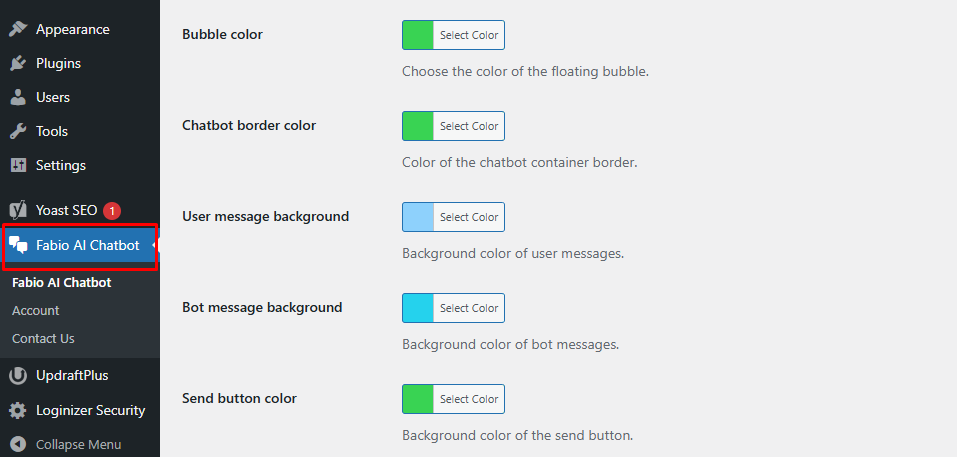
You can customize:
- The chat bubble background color
- The border color
- The user message background color
- The chatbot message background color
- The “Send” button color
Click on any color field to open the color picker. Simply choose your preferred color and it will be instantly applied to the chatbot.
If you want to restore the default colors, click the “Reset” button that appears on the right side of the color selector after opening it.
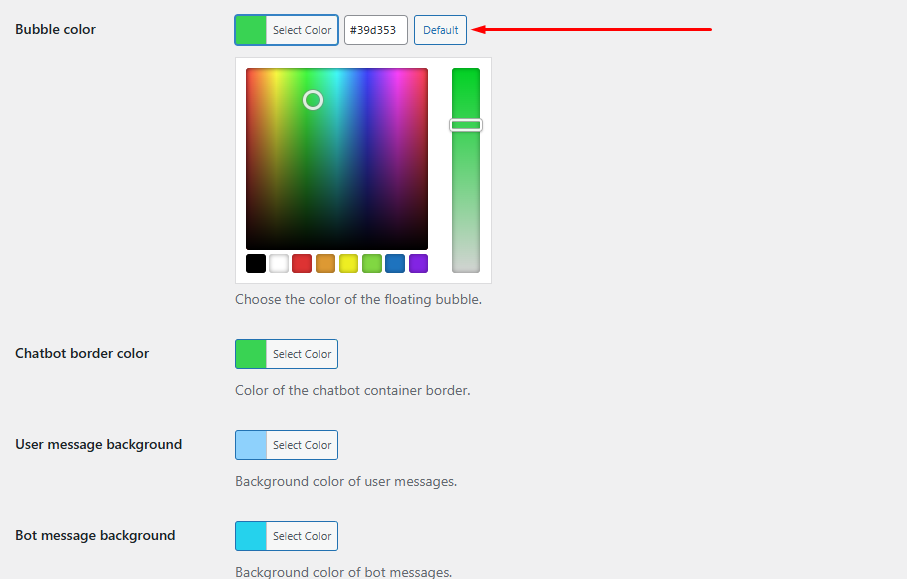

.
